How to create a YouTube channel: a step-by-step guide to start from scratch
Learn how to create a YouTube channel on desktop and mobile, customize your profile, plan your first videos and use your channel to grow your audience and sell.

What will we see in this post

Have you ever thought about sharing your knowledge on YouTube but don’t know where to start? Creating a channel on the platform can be the first step to turning your ideas into content and, who knows, into a source of income.
And the platform’s potential is huge. According to the Digital 2026: Global Overview report by DataReportal, YouTube is the social app with the most active users and the most total time spent in the world, based on Similarweb data. On top of that, the platform receives more than 20 million videos a day on average, according to YouTube data from March 2025.
In this guide, we’ll show you how to create a YouTube channel from scratch, customize your profile, publish your first videos and discover how to turn your content into a business opportunity.
How to create a YouTube channel: step by step
Creating a YouTube channel is free and takes just a few minutes. To get started, you need a Google Account. Then, just go to the platform, open your settings, select the option to create a channel and set your name, photo and handle.
The process is simple, but it’s worth knowing a few settings before you start. After all, choosing the type of channel and organizing your identity from the beginning can make your work much easier later on.
Here are the five steps to get your channel up and running:
- Have a Google Account.
- Choose between a personal channel and a Brand Account channel.
- Create the channel on desktop.
- Or create the channel on mobile.
- Set your name, photo and handle (@).
Below, you’ll see each of these steps in detail, with screenshots on desktop and mobile.
1. Have a Google Account
The first step is to have a Google Account, since that’s what gives you access to YouTube’s features.
If you already use Gmail, you can sign in to the platform with the same email address and password. If you don’t have an account yet, just go to Google’s sign-up page, fill in your details and follow the instructions.
Keep in mind that having a Google Account doesn’t mean you have a channel. The channel is the public space where you’ll publish videos, organize playlists and interact with your audience.
2. Choose between a personal channel and a Brand Account channel
Before creating your channel, it’s worth understanding the difference between the two management options YouTube offers: the personal channel and the channel linked to a Brand Account.
| Feature | Personal channel | Brand Account channel |
|---|---|---|
| Channel name | Any name, linked to your Google Account | Any name, linked to the Brand Account |
| Management | Tied to the creator’s account | Can have other owners and managers |
| Best for | People who want to manage their own channel individually | Businesses, projects and creators who need to share management |
If you plan to share your knowledge, build a personal brand and produce videos on your own, a personal channel may be all you need.
If you want to keep channel management separate from your personal account or work with a team, a Brand Account offers more management options.
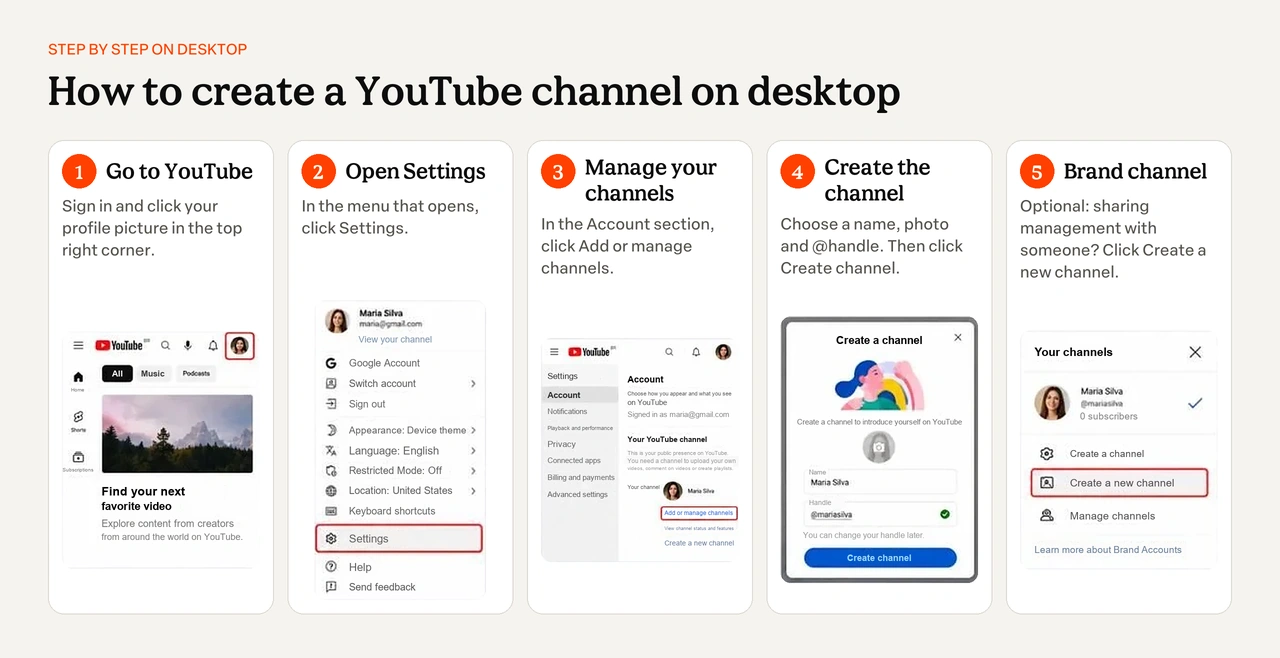
3. How to create a YouTube channel on desktop
If you’re looking for how to open a YouTube channel on your computer, follow these steps:
- Go to YouTube and sign in with your Google Account.
- Click your profile picture in the top right corner.
- Select Settings.
- In the Account section, click Add or manage channels.
- Choose Create a channel.
- Set your channel’s photo, name and handle.
- Click Create channel to finish.
4. How to create a YouTube channel on mobile
You can also create a YouTube channel on your phone, without needing a computer.
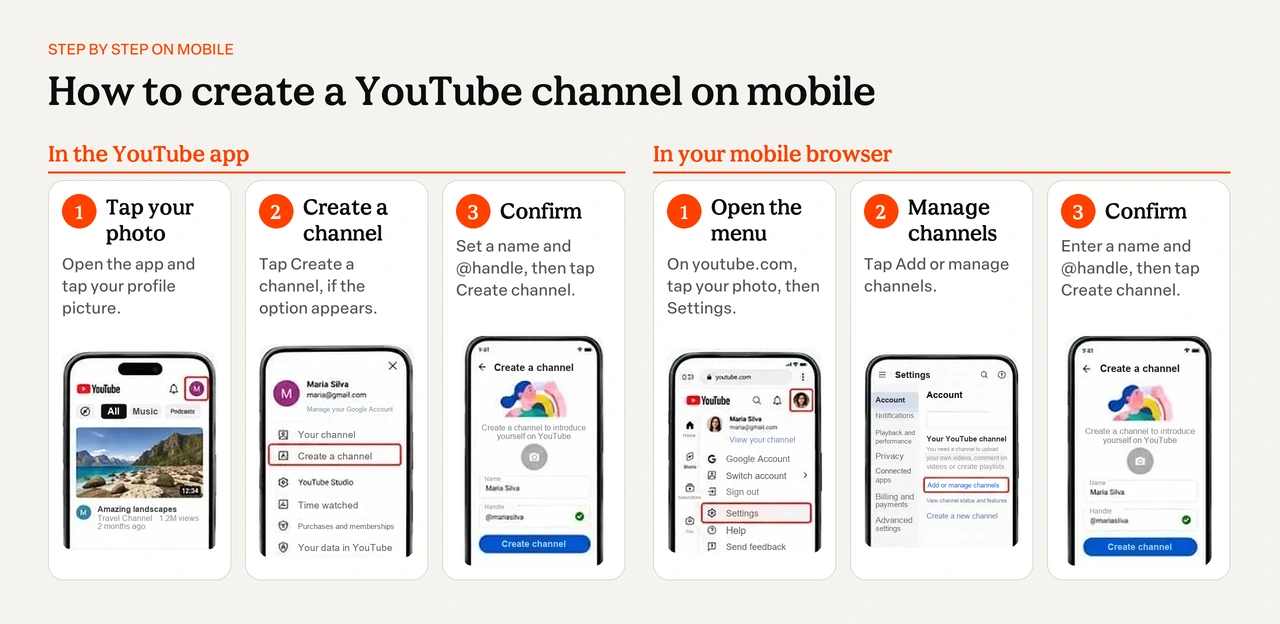
In the YouTube app, sign in with your Google Account, tap your profile picture and look for the option to view or create your channel. If there’s no channel linked to your account yet, follow the on-screen instructions to choose a name, photo and handle.
Another option is to use your mobile browser. In that case, the path documented by YouTube is:
- Go to the YouTube website and sign in.
- Tap your profile picture and open Settings.
- Go to Add or manage channels.
- Select Create a channel.
- Choose a name, photo and handle.
- Confirm.
Menu names and locations may vary depending on the app version. If the create option doesn’t show up, try updating the app or doing it through the browser.
5. Set your channel name, photo and handle (@)
Now that you know how to make a YouTube channel, it’s time to think about how people will find you.
Your channel name should be easy to remember, easy to spell and clearly related to the content you plan to publish. Avoid confusing combinations of numbers and words, especially if you want to build a recognizable brand.
Some well-known channels show how a good name can communicate a clear proposal:
- Manual do Mundo: Iberê Thenório and Mariana Fulfaro’s channel has a name that fits its goal of teaching and explaining topics through experiments and curiosities.
- Me Poupe!: Nathalia Arcuri’s channel uses a short, catchy expression tied to the world of personal finance.
- Canaltech: a name that points directly to the world of technology.
Besides the name, you need to choose a handle, represented by the @ symbol. It’s unique and part of your channel’s address, making it easier to identify and share.
It’s also worth choosing a profile picture that represents your project. If you plan to appear in your videos, a clear photo of your face can help people recognize you. For a business, the logo may be a better choice.
In the video below, you’ll find tips to get your channel idea off the ground and start producing content.
How to customize your YouTube channel
Once your channel is created, a few adjustments help you convey a more professional image and make it clear what people will find in your videos. The main ones are:
- profile picture and banner;
- description and links;
- trailer and channel sections;
- basic settings.
Profile picture and YouTube banner size
Your YouTube profile picture should make the creator or brand easy to recognize. Choose sharp images with good lighting and few elements, since they appear in a small size across different areas of the platform.
The YouTube banner is the cover image shown at the top of your channel page. You can use it to present the project name, highlight the topic of your videos or communicate your content proposal.
The YouTube banner size should be at least 2048 x 1152 pixels, in a 16:9 aspect ratio, with a file of up to 6 MB. For the image to look good on TV as well, YouTube recommends 2560 x 1440 pixels, according to the YouTube Help Center.
Since the image is cropped differently on each device, keep text and logos inside the 1235 x 338 pixel safe area, which shows up on every screen.
Description and links
The description is where you present your channel’s purpose and explain what kind of content people can expect.
If you plan to create baking videos, for example, you could write:
“Here you’ll learn baking techniques, practical recipes and tips to turn your passion for desserts into a business. New content every week for anyone who wants to level up in the kitchen.”
Notice that the description presents the topic, the audience and the benefit of following the channel. It’s also worth including words related to the subjects you cover, as long as they appear naturally.
In YouTube Studio, you can add links to your website, social media and other important pages. If you sell a course or an ebook, this space can also help send visitors to your products.
Trailer and channel sections
The trailer is an introduction video shown to people who haven’t subscribed to your channel yet. It can explain who you are, what topics you cover and why it’s worth following your content.
It doesn’t need to be a long production. A straightforward video with a clear presentation of your proposal can do the job.
Another option is to organize your home page into sections and playlists. If you create content about digital marketing, for example, you can create specific playlists for Instagram, video production and sales strategies.
This organization makes navigation easier and helps visitors find the topics they’re interested in.
Adjust your channel’s basic settings
Before your first video, it’s worth getting a few settings ready in YouTube Studio:
- Phone verification: unlocks intermediate features, such as videos longer than 15 minutes, custom thumbnails and live streaming.
- Channel audience: state whether your content is made for kids, which YouTube requires for every channel.
- Upload defaults: set a default title, description and visibility so you don’t have to fill them in for every video.
With that done, your channel is ready for its first videos.
How to plan your content before your first video
Creating the channel is just the first step. Before you start recording, it’s worth defining a few things that will help you keep a consistent content production:
- niche and audience;
- video formats;
- publishing schedule;
- recording equipment.
And there’s plenty of room for new creators: with millions of videos uploaded every day, producing content with a clear proposal is what helps your channel stand out in the content creator ecosystem.
Define your niche and audience
Choosing a niche, or even a micro niche, means identifying your channel’s main topic and the audience you want to reach.
If you’re an English teacher, for example, you can make videos for beginners, professionals who need the language at work or people getting ready to travel.
The more clarity you have about who you want to help, the easier it will be to find relevant topics for your videos.
Channels like Me Poupe!, focused on personal finance, and Manual do Mundo, known for science, curiosities and experiments, show how a well-defined proposal can guide different content formats.
And knowing your audience matters even more when you consider how diverse the people using the platform are.
According to the same Digital 2026 report by DataReportal, YouTube’s potential ad audience is made up of roughly 53% men and 47% women.
The geographic distribution is also striking. Estimates published by Statista rank India as the country with the largest audience on the platform, with about 518 million users, followed by the United States, with 259 million, and Indonesia, with 151 million.
Brazil also stands out, ranking fourth in the same survey.
Choose your formats: long videos, Shorts and live streams
YouTube offers different formats, and each one can play a role in your strategy.
Long videos work well for tutorials, classes and content that needs deeper explanations. Shorts, on the other hand, let you share quick tips, curiosities and video clips, with the potential to reach people who don’t know your channel yet.
This format has grown fast. In 2023, Shorts had already reached 2 billion logged-in users per month, according to data compiled by Statista.
If you’re building your presence on the platform, short videos can work as a gateway to more complete content. You can turn video cuts from long videos into Shorts, post teasers or adapt material you’ve already created for other social networks.
Live streams, in turn, are a chance to talk to your audience in real time, answer questions and dig deeper into topics.
You don’t have to pick just one format. A creator who teaches photography, for example, can publish Shorts with lighting tips, long videos on photography techniques and live streams to answer subscribers’ questions.
Build a publishing schedule
Consistency matters for building a relationship with your audience. But that doesn’t mean you have to post every day.
Start with a frequency you can keep up with. One option is to plan one long video a week and three Shorts, using clips or topics that complement your main content.
If that’s still too much for your routine, it’s fine to start with less.
What matters is creating a realistic plan, organizing your ideas ahead of time and keeping video production from becoming impossible to sustain.
What you need to record
You don’t need to set up a studio to start a YouTube channel. In many cases, the phone you already use every day is enough to produce your first homemade videos.
To improve the quality of your recordings, a few tools can help:
- Phone with a camera: lets you record videos without investing in professional equipment right away.
- Lavalier microphone: can improve audio quality and reduce background noise.
- Natural light or ring light: helps you get better lighting for your videos and a clearer image.
- Editing app: tools like CapCut, DaVinci Resolve and VN, as well as other video recording and editing apps, let you cut scenes, organize footage and add text.
Before investing in equipment, find a quiet space, position your phone well and make the most of the light you have.
A video with relevant content and clear audio can be much more useful to your audience than an elaborate production that doesn’t answer their questions.
What is a faceless channel, and can you have a channel without appearing on camera?
A faceless channel is a YouTube channel where the creator doesn’t appear in the videos. The content is made with narration, images, animations or screen recordings. So yes, you can create a YouTube channel without showing your face.
If you’re wondering what a faceless YouTube channel is, it’s important to know that it’s not an official category on the platform. It’s a content production model that doesn’t require the creator to be on camera.
Some niches work well in this format, such as history curiosities, digital tool tutorials, educational content and science or technology explainers. Screen recording apps are useful for tutorials, for example.
Artificial intelligence tools can also help with scripts, voice-overs and editing. But keep in mind: using AI doesn’t remove the need to produce original content, check information and respect copyright.
YouTube has specific policies on reused content, repetitive content and mass-produced content. That’s why quality and originality are still essential, including for anyone who plans to monetize their channel.
Watch the video below to learn how to create a faceless YouTube channel with the help of artificial intelligence.
How to publish your first YouTube video
To publish your first YouTube video, you can use YouTube Studio on your computer or the YouTube app on your phone. Just select the option to create or upload content, choose the file and fill in the requested information.
But the upload isn’t the only thing that deserves attention. A few elements help present your content better and make it easier for people to understand what the video is about.
Here are the main ones:
- Title: choose a clear phrase that explains the topic and, when it makes sense, include terms your audience usually searches for.
- Description: add a summary of the content, extra information and relevant links.
- Thumbnail: use a thumbnail that represents the topic and sparks curiosity without promising something the video doesn’t deliver.
- Playlist: add the video to a related playlist so viewers can find more of your content.
- Visibility: decide whether the video will be public, unlisted, private or scheduled for a specific date.
- Chapters and captions: split long videos into chapters with timestamps in the description and turn on captions. Both make navigation easier and help YouTube understand what your video is about.
It’s also worth verifying your account to unlock certain features, such as uploading videos longer than 15 minutes and using custom thumbnails.
After filling in the details, review everything and publish.
Your first video is live!
Tips to grow your channel
After publishing your first videos, the next challenge is to attract viewers and build an audience that’s interested in your content.
Here are some practices that can help:
- Create eye-catching thumbnails: use sharp images and short text that communicates the topic. In a photography tutorial, for example, showing the before and after of a photo can spark curiosity.
- Nail the first 30 seconds: quickly introduce the topic and show what people will learn. Avoid long intros before getting to the point.
- Write titles that answer real searches: instead of just “My routine”, try something like “How to build a study routine for exams”.
- Use Shorts to expand your reach: turn a tip from a long video into short content and point interested viewers to the full explanation.
- Reply to comments: use questions and suggestions to start conversations and find topics for your next videos.
- Track YouTube Analytics: look at metrics like audience retention, watch time and traffic sources to understand how people find and watch your content.
There’s no single formula for growing on YouTube. What matters most is to test, analyze the results and improve your videos based on what your audience is interested in.
In the video below, you’ll see how to use ChatGPT to build a growth plan for your channel.
When does a YouTube channel start making money?
A YouTube channel starts making money from ads when it joins the YouTube Partner Program (YPP). To do that, it needs at least 1,000 subscribers and 4,000 watch hours in the last 12 months, or 10 million Shorts views in the last 90 days. With 500 subscribers and lower watch hour or Shorts view goals, you can already access some features, such as fan funding.
The criteria change often, so it’s worth checking the rules in the YouTube Help Center. You’ll also need a linked Google AdSense account to get paid. For more details, check out our guide on how to make money on YouTube.
How to use your YouTube channel to sell your digital product
Making money on YouTube doesn’t depend on ads alone. If you know a lot about a topic, you can also turn that knowledge into a digital product and use your channel to attract people who want to learn from you.
And this opportunity goes beyond entertainment. According to Sprout Social data, 24% of consumers use YouTube to discover new products.
This shows that the platform is also part of the buying journey. Tutorials, demos and in-depth reviews can help people learn about solutions and make more informed decisions.
Imagine you teach baking. On your channel, you can publish free videos with recipes, decorating techniques and tips for people who want to start selling desserts.
In one of those videos, you cover the most common mistakes when pricing cakes and invite viewers to download a free spreadsheet from the link in the description, which takes them to a landing page.
After getting the material and agreeing to receive your messages, people can discover more content on the topic and, later on, receive an offer for a full course in professional baking.
This strategy lets you use your videos to attract, educate and build a relationship with potential customers.
And there’s an important advantage: you don’t have to wait until you meet the requirements of the YouTube Partner Program to start selling digital products.
With Hotmart, you can create, host and sell online courses, ebooks and other digital products, connecting your channel’s content to a sales structure.
Ready to create your channel?
Now that you know how to create a YouTube channel, it’s time to put your plans into action. As we’ve seen, getting started is free and doesn’t require a professional setup. With a Google Account, you create the channel, choose your name and customize your page in just a few steps.
After that, the secret is to define a niche, get to know your audience and build a production routine that works for you. And if your goal is to turn your knowledge into income, remember that there are different paths.
Besides YouTube monetization, you can create and sell online courses, ebooks or mentorships and use your videos to reach potential customers. With Hotmart, you’ll find tools to turn your knowledge into a digital product and start building your business.
Your first video could be the start of something much bigger. Why not get that idea off the ground?
Frequently asked questions about how to create a YouTube channel
Still have questions? Below, we answer some of the most common questions about how to create a YouTube channel.
How much does it cost to open a YouTube channel?
Creating a YouTube channel is free. All you need is a Google Account and internet access to sign up.
You also don't have to pay to publish videos. Any costs come from optional investments, such as equipment, editing tools, visual identity or promotion.
Can I create more than one channel with the same Google Account?
Yes. You can create another YouTube channel using the same Google Account.
To do this, sign in, open your settings and go to the channel management area. Then select the option to create a new channel and set its details.
This is useful for anyone who wants to keep personal and professional content separate or manage projects with different proposals.
Can I change my YouTube channel name after creating it?
Yes. To change your YouTube channel name, go to YouTube Studio, open the profile customization area and edit the name that's displayed.
The platform allows changes, but it may limit how often you can make them.
That's why it's worth choosing a name that represents your content and can keep up as your channel grows.
How do I change my YouTube channel handle (@)?
To change your YouTube channel handle, go to YouTube Studio, open Customization > Basic info and edit your handle. The new @ must be available, and it becomes part of your channel's address.
How do I create a YouTube channel for my child?
Whether a minor can create and manage a channel depends on the child's age, the country and the rules that apply to Google Accounts and YouTube's supervised experiences.
Supervised accounts for children may have restrictions that prevent creating channels and uploading videos. That's why the parent or guardian should check the official rules before trying to sign up.
If the goal is to produce content featuring the child, the parent or guardian can consider creating a channel under their own management, following the platform's policies and protecting the child's privacy and image.
It's also important to check the audience settings for each video, especially when the content is made for kids.
What is the ideal YouTube banner size?
The ideal YouTube banner size is 2560 x 1440 pixels, in a 16:9 aspect ratio. The minimum is 2048 x 1152 pixels, with a file of up to 6 MB, and text and logos should stay within the central 1235 x 338 pixel area.